
Download Microsoft OneNote – Free, Secure Note‑Taking App for Windows, Mac, Android & iOS
Overview: Why Microsoft OneNote Stands Out in the Note‑Taking Landscape
Microsoft OneNote is a free, cloud‑enabled digital notebook that turns any device into a powerful workspace for ideas, research, and collaboration. Built into the Microsoft 365 ecosystem, OneNote lets you create, organize, and share notes with a flexibility that rivals premium alternatives—yet it remains completely free. Whether you’re a student drafting lecture summaries, a professional tracking meeting minutes, or a creative mind sketching out storyboards, OneNote’s infinite canvas adapts to every workflow.
OneNote’s core strength lies in its seamless synchronization across platforms. Every notebook you create is stored securely in OneDrive, ensuring that the latest version of your content is instantly available on Windows PCs, macOS laptops, Android tablets, and iOS iPhones. The app also integrates tightly with other Microsoft services such as Outlook, Teams, and Office, allowing you to embed emails, calendar events, and even Excel spreadsheets directly into your notes.
Beyond basic text entry, OneNote supports rich media—hand‑written ink, audio recordings, file attachments, and web clippings—all of which can be indexed and searched. Its tagging system lets you flag important items, create custom checklists, and set reminders, turning a simple notebook into an intelligent task manager. Because everything lives in the cloud, you can switch devices without missing a beat, making OneNote an indispensable tool for anyone who needs to capture ideas on the fly and keep them organized for the long haul.
Key Features That Make OneNote a Must‑Have Productivity Tool
- Infinite Canvas: Add pages, sections, and sub‑sections without limits, letting you structure information hierarchically or freely.
- Rich Media Support: Insert images, videos, audio notes, PDFs, and Office documents directly into your pages.
- Handwriting & Ink: Use a stylus or finger to draw sketches, annotate PDFs, or write notes that are instantly converted to searchable text.
- Cloud Sync via OneDrive: Automatic, real‑time syncing keeps your notebooks up‑to‑date across Windows, macOS, Android, and iOS.
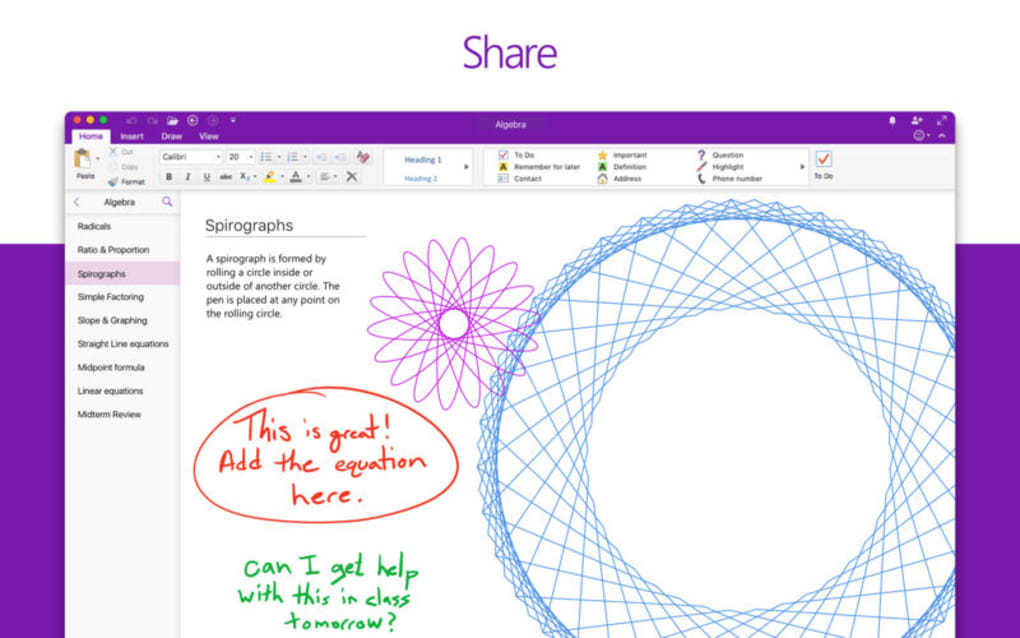
- Collaboration Tools: Share notebooks with teammates, co‑author in real time, and leave comments for instant feedback.
- Tagging & Task Management: Apply tags like “Important,” “Question,” or custom tags to surface critical items; convert tags into Outlook tasks.
- Searchable Content: Full‑text search works across typed text, handwritten ink, and even OCR‑processed images.
- Integration with Microsoft 365: Embed Outlook emails, Teams chats, and Excel spreadsheets without leaving the app.
- Cross‑Platform Accessibility: Native apps for Windows 10/11, macOS, Android, iOS, plus a web version for any browser.
- Security & Compliance: Data is encrypted at rest and in transit; administrators can enforce compliance policies via Azure AD.
These features aren’t just a collection of nice‑to‑have extras—they work together to create a fluid, all‑in‑one workspace. For example, you can record a lecture on your iPad, annotate the audio waveform with handwritten notes, and then share the entire notebook with classmates who can listen, read, and add their own insights. The same workflow translates to a corporate setting: a project manager can paste a PowerPoint slide, add a voice‑over explaining key points, and distribute the enriched notebook to stakeholders for review.
Because OneNote is part of the broader Microsoft ecosystem, it also benefits from regular security updates and feature enhancements. Microsoft continuously adds AI‑driven capabilities, such as “Ink to Text” conversion and “Learning Tools” that improve readability for users with dyslexia. The result is a living application that evolves with user needs while staying free and secure.
Installation, Usage & Compatibility: Getting Started on Any Device
Step‑by‑Step Installation
Installing OneNote is straightforward across all major platforms. For Windows 10/11, simply visit the Microsoft Store, search for “OneNote,” and click Get. macOS users can download the app from the Mac App Store or the official Microsoft website. Android and iOS users find OneNote in Google Play and the Apple App Store respectively. Once installed, launch the app and sign in with your Microsoft account to activate cloud sync.
If you prefer a web‑based experience, navigate to onenote.com and log in; the browser version offers virtually the same feature set without any local installation. This is ideal for public computers or devices where you cannot install software.
First‑Run Configuration
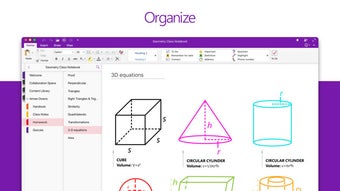
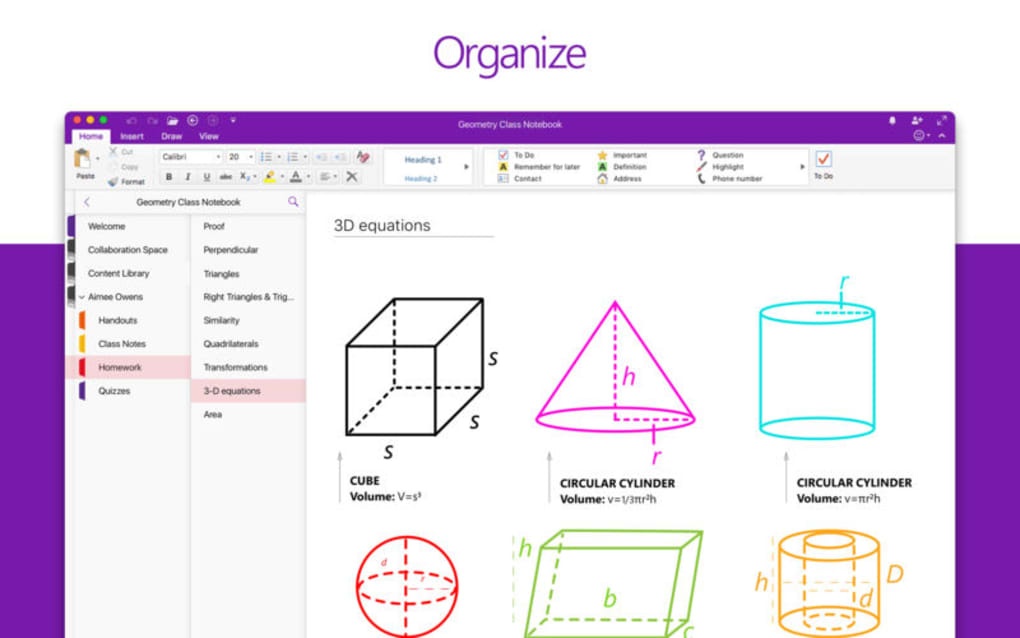
After signing in, OneNote prompts you to create your first notebook. Choose a name that reflects the project or subject, then select a storage location—by default it saves to OneDrive, but you can point it to a SharePoint site for team‑wide access. The interface then displays a familiar tabbed layout: Notebooks on the left, Sections across the top, and a blank page ready for content.
To customize the experience, explore the Settings menu (gear icon). Here you can toggle features like “Ink to Shape,” set default fonts, configure auto‑save intervals, and manage notification preferences. Advanced users may also enable “Developer Mode” to integrate OneNote with Power Automate for workflow automation.
Cross‑Platform Compatibility (itemprop="operatingSystem")
OneNote’s compatibility spans the most common operating systems:
- Windows 10/11: Full‑featured desktop client with deep integration into the Windows ecosystem.
- macOS 10.14+: Native app with support for Apple Pencil on compatible iPad models via Sidecar.
- Android 6.0+: Optimized touch interface, offline notebook access, and widget support.
- iOS 13+: Seamless sync with iPad and iPhone, plus Apple Pencil handwriting recognition.
- Web Browsers: Chrome, Edge, Firefox, Safari—all support the full OneNote web experience.
Because all data is stored in the cloud, you can start a note on an Android phone, continue editing on a Windows PC, and finish with a quick sketch on an iPad—all without manual transfers. The app also respects system‑level security policies, supporting Windows Hello, macOS Touch ID, and mobile device management (MDM) solutions for enterprises.
Everyday Usage Tips
To maximize productivity, consider these proven workflows:
- Meeting Capture: Create a section for each project, then add a page for each meeting. Use the “Audio Recording” button to capture discussions, and tag action items for follow‑up.
- Research Library: Clip web articles via the OneNote Web Clipper extension, then annotate PDFs with ink and comments.
- Study Flashcards: Build a table with “Question” and “Answer” columns; OneNote’s search lets you locate any card instantly.
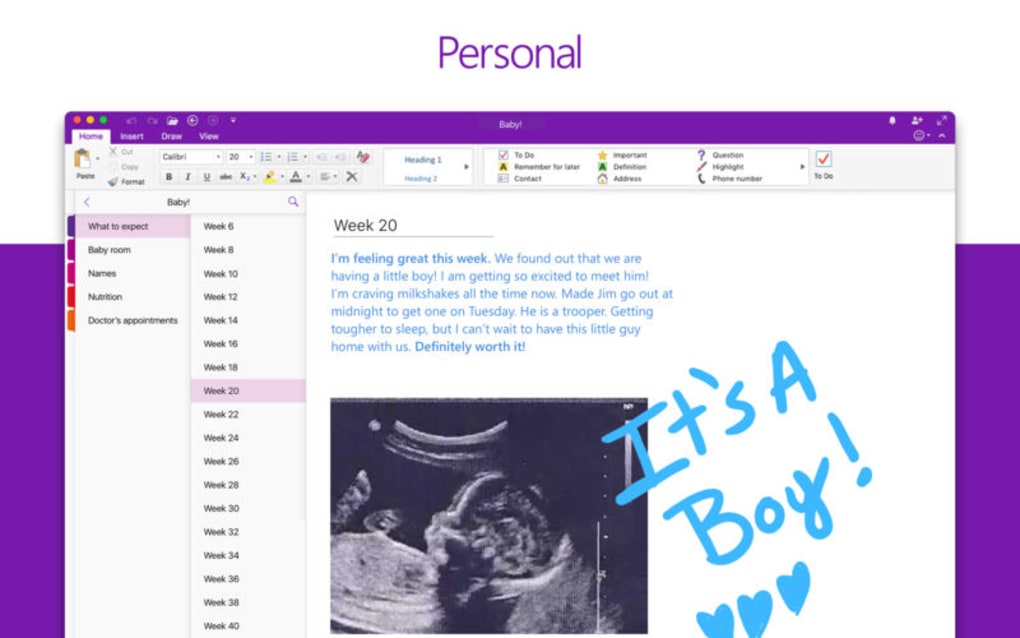
- Personal Journaling: Insert daily photos, voice memos, and mood tags to build a multimedia diary that’s searchable by date.
These practices illustrate how OneNote can serve as a universal hub for both personal and professional information, all while staying free and secure.
Pros, Cons, Frequently Asked Questions & Final Thoughts
Pros & Cons
- Pros:
- Completely free with no hidden fees.
- Robust cross‑platform sync via OneDrive.
- Rich media support and powerful handwriting recognition.
- Deep integration with Microsoft 365 tools.
- Real‑time collaboration for teams.
- Cons:
- Interface can feel cluttered for new users.
- Advanced formatting options are limited compared to full‑featured word processors.
- Large notebooks may experience slower loading on older devices.
- Some enterprise features require Azure AD licensing.
FAQ (Microdata for FAQPage)
Is Microsoft OneNote truly free or are there hidden costs?
OneNote is completely free for personal use. All core features—including cloud sync, handwriting, and collaboration—are available without a subscription. Enterprise‑level administration tools are part of Microsoft 365 plans, but they are optional.
Can I use OneNote offline?
Yes. OneNote caches your notebooks locally, allowing you to view and edit them without an internet connection. Changes sync automatically when you reconnect.
How secure is my data in OneNote?
Data is encrypted both at rest and in transit using industry‑standard TLS and AES‑256 encryption. For business accounts, administrators can enforce additional compliance policies via Azure Active Directory.
Does OneNote support third‑party add‑ins?
Yes. Through the Office Store, you can add extensions such as PDF converters, diagram tools, and task‑management integrations that appear directly within the OneNote ribbon.
Can I embed Excel spreadsheets and PowerPoint slides?
Absolutely. OneNote lets you insert live Office documents. Embedded spreadsheets retain formulas, and PowerPoint slides can be viewed and annotated directly within a notebook page.
Conclusion & Call to Action
Microsoft OneNote delivers a comprehensive, cloud‑centric note‑taking experience that rivals paid competitors while remaining free. Its infinite canvas, multimedia support, and tight integration with the Microsoft 365 suite make it an ideal choice for students, professionals, and creative teams alike. Though the interface may require a brief learning curve, the payoff is a unified workspace that keeps your ideas organized, searchable, and instantly accessible from any device.
If you’re ready to boost productivity and keep your notes secure, download Microsoft OneNote today and start building your digital notebook collection. Experience the freedom of cloud‑based note‑taking without paying a cent—your ideas deserve a smarter home.







